What is Codinamo?
Codinamo keeps the software delivery workflow in one model, from source to deployment. Users describe what should happen as a directed graph of actions. Codinamo validates that graph, schedules its executable steps, records everything, and shows you the results.
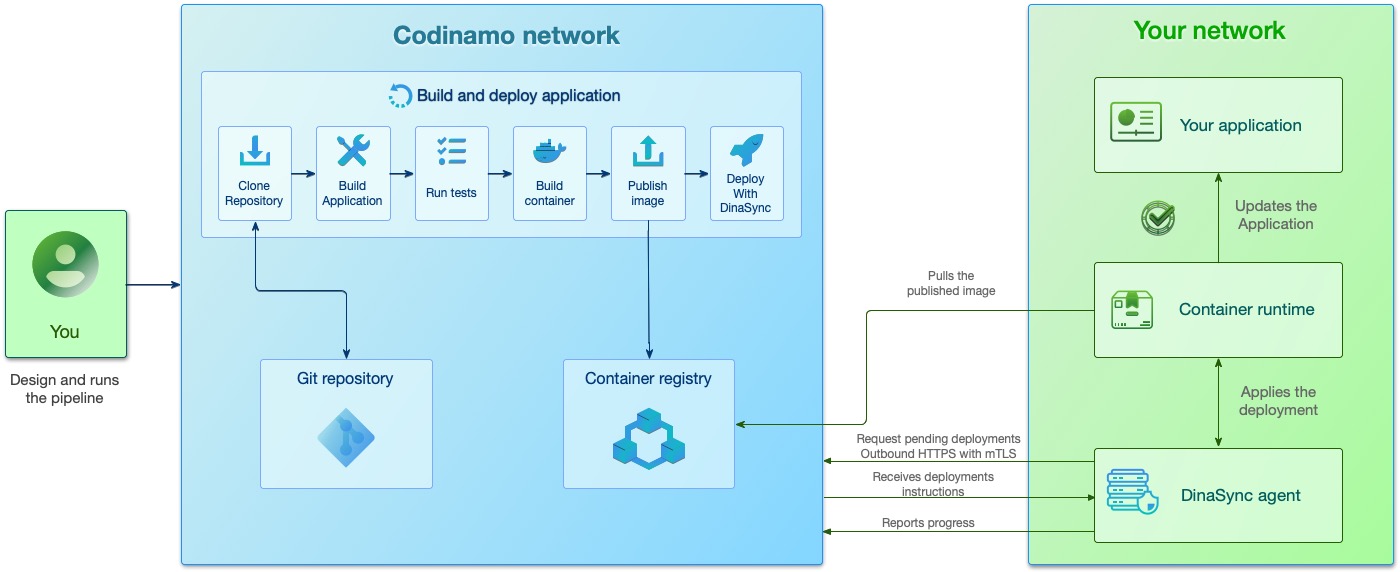
Main workflow
-
Select a personal or shared organization and enter one of its workspaces.
-
Create a project and optionally enable its hosted Git repository.
-
Create a pipeline for the project.
-
Add actions and connect them in the visual editor, or edit the equivalent ICE source.
-
Configure variables, secrets, and references to outputs from earlier actions.
-
Run the pipeline and inspect logs, outputs, test reports, and the canonical
RUN-…identifier. -
Package and move build artifacts through archive, S3-compatible, or Bunny Storage actions when required.
-
Publish images to the project Registry when required.
-
Send a release to a centrally configured deployment target through DinaSync.
-
Use organization teams and scoped roles to control who can operate each resource.
The web application and the codi command-line client operate the same server-owned projects, pipelines, runs, and deployment resources. The organization-level Access area manages users, teams, roles, and grants over those resources.
Organization and access boundaries
Organizations provide stable ownership and public namespaces. Workspaces isolate delivery resources inside that owner. Teams group organization members without forcing workspaces into a department hierarchy.
Access grants connect a user or team to a role at a resource scope. A workspace grant can cover compatible descendants, while a project or pipeline grant limits the responsibility to a narrower subtree.
Two equivalent authoring surfaces
The canvas and ICE source represent the same server-side pipeline definition.
An action has a stable reference name such as docker_build_1.
Connections in the canvas correspond to edges in the ICE @flow section.
@flow {
    clone -> build -> [image, checksum] -> publish
}The visual editor provides Properties, Info, and Validation in one lower inspector. Info describes the selected action and its outputs; Validation reports structural and expression diagnostics without blocking the last valid graph.